Introduction to Nano | 02x00.03-01
TL;DR
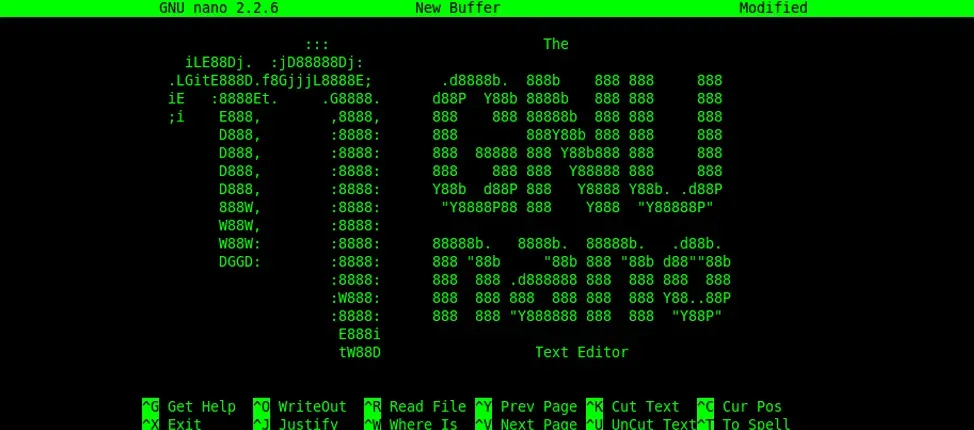
Nano is a simple, beginner-friendly terminal text editor for Unix-like systems, created by Chris Allegretta in 1999 as a free alternative to Pico. This guide covers opening files, navigating, editing, searching and replacing, and saving and exiting, with the shortcuts shown at the bottom of the screen.
On this page
Nano is a user-friendly text editor that has been a staple in Unix and Unix-like systems since its inception. This article serves as a comprehensive guide to Nano, covering its origins, core concepts, and essential commands necessary for efficient text editing. Whether you are new to Nano or seeking to refine your skills, this guide will help you navigate and utilize Nano effectively.
What is Nano
Nano is a straightforward text editor designed to be easy to use, especially for novice users. It was created as an alternative to more complex editors like Emacs and Vi, offering simplicity and accessibility without compromising functionality.
Origins of Nano
Nano was initially developed by Chris Allegretta in 1999 as a replacement for the aging Pico text editor, which was part of the Pine email client. Its development aimed to provide a free software alternative with modern features and a familiar interface.

Getting Started with Nano
To start Nano, open a terminal and type:
nano filenameThis command opens Nano and loads the specified file for editing.
Basic Navigation and Commands
Nano provides a simple interface for editing text:
- Arrow keys: Navigate through the text.
- Ctrl + G: Get help for Nano commands.
- Ctrl + O: Write the current file to disk.
- Ctrl + X: Exit Nano (prompts to save if changes were made).
Editing Text
In Nano, you can edit text directly without needing to switch between modes:
- Delete: Use the Delete key to remove characters.
- Cut and Paste: Nano uses simple key combinations like Ctrl + K to cut (kill) text and Ctrl + U to paste (uncut).
Search and Replace
To search for text within Nano:
Ctrl + WThis command allows you to enter a search term and navigate through occurrences.
Saving and Exiting Nano
To save changes and exit Nano:
Ctrl + OTo exit Nano without saving:
Ctrl + XConclusion
Nano stands as a reliable and accessible text editor, suitable for both beginners and seasoned users looking for efficiency in Unix environments. Its intuitive interface and straightforward commands make it a preferred choice for quick editing tasks and scripting.
Key takeaways 5
- Nano is the easiest terminal editor for beginners.
- Chris Allegretta created it in 1999 as a free Pico replacement.
- Shortcuts appear at the bottom of the screen (^ means Ctrl).
- Ctrl+W searches and Ctrl+\ replaces text.
- Ctrl+O saves and Ctrl+X exits.
Frequently asked questions
How do I save and exit in Nano?
Press Ctrl+O to write (save) the file and Enter to confirm the name, then Ctrl+X to exit. If you press Ctrl+X with unsaved changes, Nano asks whether to save.
How do I search in Nano?
Press Ctrl+W, type the text and press Enter. Press Alt+W to find the next occurrence.
Is Nano better than Vim for beginners?
Usually yes. Nano works like a simple editor with on-screen shortcuts, while Vim's modal editing is more powerful but takes time to learn.
Learn it hands-on at AL Academy
Free practical programs in software, automation and IT, with labs and certificates.
Related articles
Introduction to Vi | 02x00.03-03
Vi is a powerful and efficient text editor that has been a standard in Unix and Unix-like operating systems for decades.
Introduction to Emacs | 02x00.03-02
Emacs is not just a text editor; it is a powerful tool that can revolutionize the way you interact with your computer.
Basic Unix Commands | 02x00.06-01
To navigate through the file system in Unix, you use the cd (change directory) command. Here are some examples:
Comments
No comments yet. Start the conversation.