Basic Unix Commands | 02x00.06-01
TL;DR
A beginner-friendly introduction to the basic Unix commands you use every day: cd and pwd to navigate, ls to list files, cat and less to read them, touch and mkdir to create, rm and rmdir to delete, and mv and cp to move and copy files and directories.
On this page
Basic Unix Commands
Unix is a powerful operating system used widely in servers, workstations, and mobile devices. Learning to navigate and perform basic operations in Unix can significantly enhance your productivity and efficiency. This article will introduce you to some fundamental Unix commands, including how to navigate the file system, list files and directories, display the content of a file, create and remove files or directories, and move or copy files or directories.
How to Navigate in a Unix System
To navigate through the file system in Unix, you use the cd (change directory) command. Here are some examples:
cd /path/to/directoryThis command changes the current directory to the specified path. To go back to the previous directory, use:
cd -To go to your home directory, use:
cd ~To navigate up one directory level, use:
cd ..How to List Files and Directories
To list the files and directories in the current directory, use the ls command. Here are some common options:
lsThis command lists all files and directories in the current directory. To include hidden files, use:
ls -aTo list files with detailed information, use:
ls -lTo list files with detailed information including hidden files, use:
ls -laHow to Display the Content of a File
To display the content of a file, you can use several commands. The most common ones are cat, more, and less. Here are examples:
cat filenameThis command displays the entire content of the file. If the file is large, use:
more filenameThis command displays the content page by page. To move to the next page, press the spacebar. For more control, use:
less filenameThis command allows you to scroll through the content using the arrow keys.
How to Create a File or Directory
To create a file, use the touch command:
touch filenameThis command creates an empty file with the specified name. To create a directory, use the mkdir command:
mkdir dirnameThis command creates a new directory with the specified name.
How to Remove a File or Directory
To remove a file, use the rm command:
rm filenameThis command deletes the specified file. To remove a directory and its contents, use:
rm -r dirnameThis command deletes the directory and all its contents recursively.
How to Move or Copy a File or Directory
To move a file or directory, use the mv command:
mv source destinationThis command moves the specified file or directory to the new location. To copy a file, use the cp command:
cp source destinationThis command copies the specified file to the new location. To copy a directory and its contents, use:
cp -r source destinationThis command copies the directory and all its contents recursively to the new location.
Conclusion
Understanding and mastering these basic Unix commands will allow you to navigate and manage your files and directories efficiently. Unix commands are powerful tools that can save you a lot of time and effort. As you become more familiar with these commands, you’ll be able to explore more advanced features and capabilities of the Unix operating system.
Resources
Key takeaways 5
- cd changes directory and pwd shows where you are.
- ls lists files; options like -l and -a show details and hidden files.
- cat, less and head display file contents.
- touch and mkdir create files and directories.
- rm deletes permanently, so double-check paths, especially with -r.
Watch & learn

Frequently asked questions
What are the most basic Unix commands?
The essentials are cd, pwd and ls for navigation, cat and less for reading files, touch and mkdir for creating, cp and mv for copying and moving, and rm and rmdir for deleting.
How do I go back to the previous directory in Unix?
Use cd - to return to the previous directory, cd .. to move up one level, and cd or cd ~ to go to your home directory.
Can I recover a file deleted with rm?
Usually not. rm removes files without a recycle bin, so check the path carefully and use rm -i if you want a confirmation prompt.
Learn it hands-on at AL Academy
Free practical programs in software, automation and IT, with labs and certificates.
Related articles
Introduction to Emacs | 02x00.03-02
Emacs is not just a text editor; it is a powerful tool that can revolutionize the way you interact with your computer.
Overview of Unix Commands for C Development
Useful Unix commands for C projects: converting spaces to tabs, fixing DOS line endings, enforcing code style and compiling and debugging.
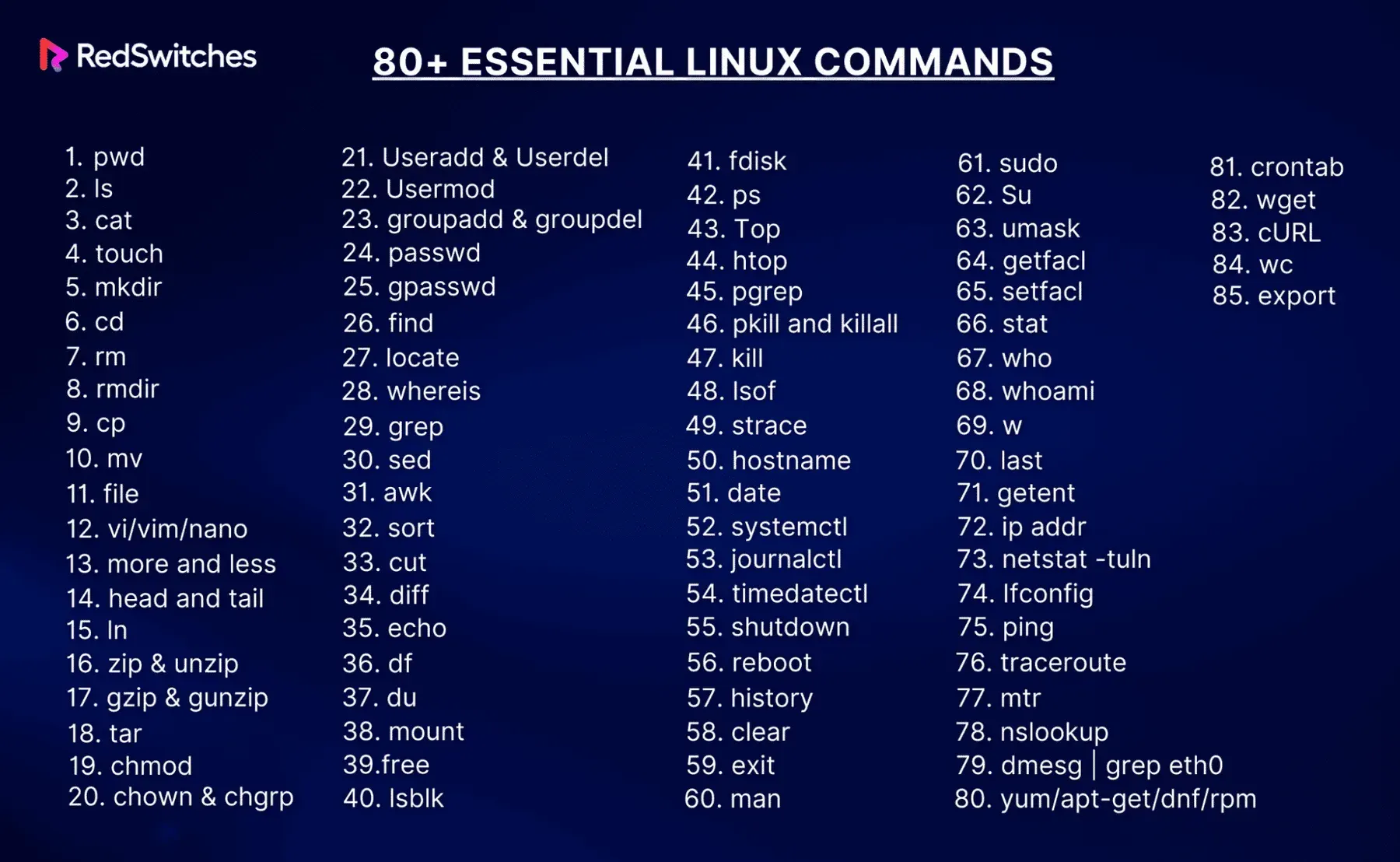
Advanced Ubuntu Terminal Commands | 02x01.06-01
Ten advanced Ubuntu terminal commands every power user should know, from grep, awk and sed to rsync, tmux, cron, ssh, find and docker.
Comments
No comments yet. Start the conversation.