Advanced Ubuntu Terminal Commands | 02x01.06-01
TL;DR
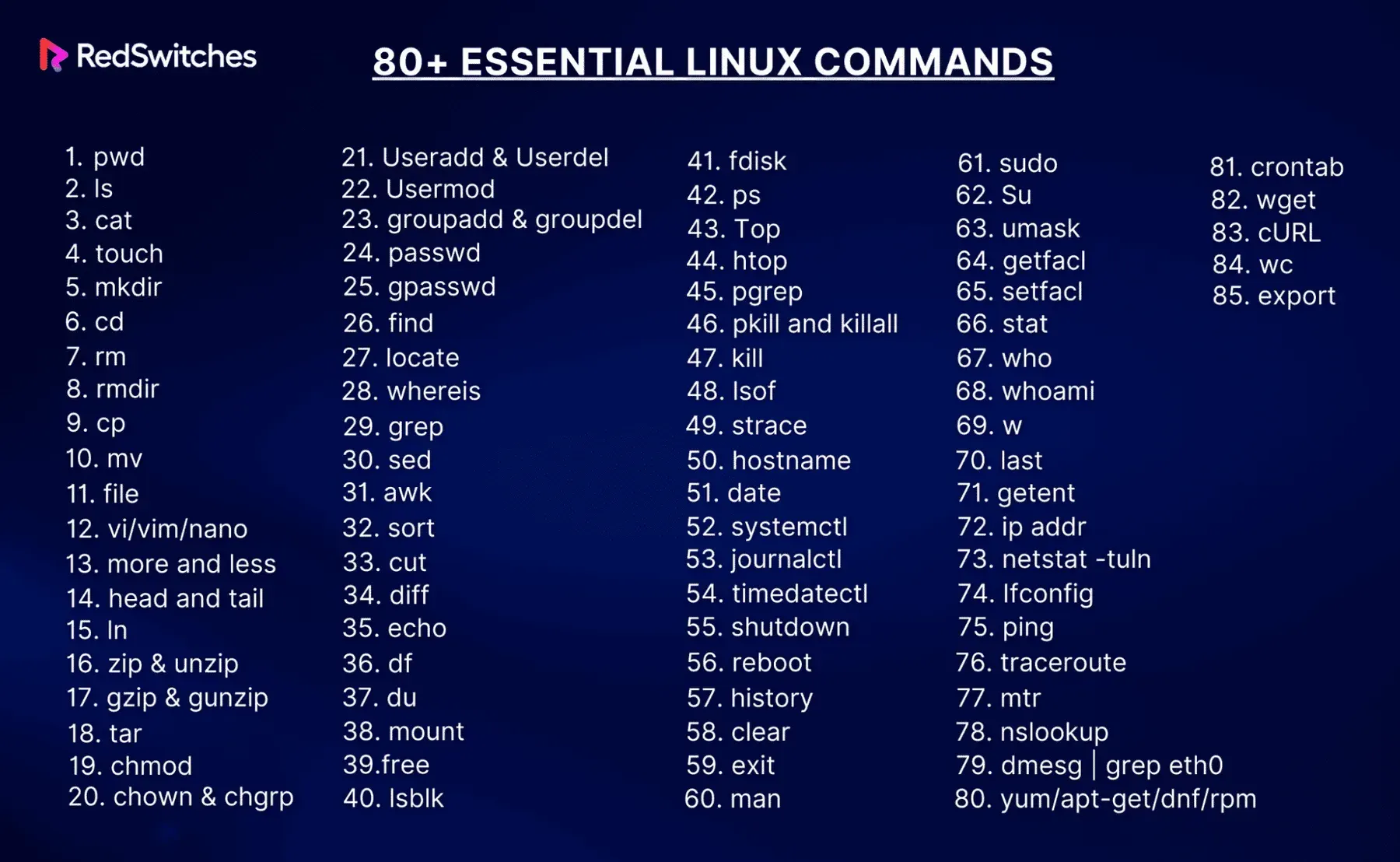
This guide covers ten advanced Ubuntu terminal commands that boost productivity: grep for searching text, awk and sed for processing it, rsync for syncing files, tmux for persistent sessions, htop for monitoring, cron for scheduling, ssh for remote access, find for locating files and docker for containers.
On this page
Introduction
Ubuntu, one of the most popular Linux distributions, offers a powerful command-line interface (CLI) that allows users to perform a wide range of tasks efficiently. While basic commands are essential for everyday use, mastering advanced terminal commands can significantly enhance your productivity and system management capabilities. This article explores some advanced Ubuntu terminal commands that every power user should know.
1. grep - Search Text Using Patterns
The grep command searches for patterns within text files. It’s incredibly powerful for finding specific information within large datasets or log files.
grep -r "search_term" /path/to/directoryOptions:
-r: Recursively search directories.-i: Ignore case distinctions.
Example:
grep -ri "error" /var/log/2. awk - Pattern Scanning and Processing
awk is a versatile programming language for working on files. It’s used for pattern scanning and processing.
Example to print the second column in a file:
awk '{print $2}' file.txt3. sed - Stream Editor
sed is used for parsing and transforming text in a stream (or file). It is commonly used for substituting text patterns.
Example to replace ‘foo’ with ‘bar’ in a file:
sed 's/foo/bar/g' file.txt4. rsync - Remote Sync
rsync is a powerful tool for copying and synchronizing files and directories both locally and remotely. It’s efficient and preserves file permissions, links, and ownership.
Example to sync two directories:
rsync -avh /source/directory /destination/directoryOptions:
-a: Archive mode (preserves permissions, timestamps, etc.)-v: Verbose mode.-h: Human-readable format.
5. tmux - Terminal Multiplexer
tmux allows you to create, access, and control multiple terminals from a single screen. It is a must-have for anyone who frequently works in the terminal.
To start a new session:
tmuxTo detach from a session:
Ctrl + b, then dTo list sessions:
tmux lsTo attach to a session:
tmux attach-session -t session_name6. htop - Interactive Process Viewer
htop is an interactive process viewer for Unix systems. It is a more user-friendly and visually appealing alternative to top.
To start htop:
htop7. cron - Job Scheduling
cron is a time-based job scheduler that allows you to run scripts and commands at specific intervals. Editing the crontab file with crontab -e lets you set up cron jobs.
Example to run a script every day at midnight:
0 0 * * * /path/to/script.sh8. ssh - Secure Shell
ssh is used for secure login and command execution on remote machines.
Example to connect to a remote server:
ssh user@remote_serverTo copy files to a remote server:
scp /path/to/local_file user@remote_server:/path/to/remote_directory9. find - Search for Files
find is used to search for files and directories based on conditions you specify.
Example to find files modified in the last 7 days:
find /path/to/directory -type f -mtime -7Options:
-type f: Search for files.-mtime -7: Modified in the last 7 days.
10. docker - Container Management
docker is a tool designed to make it easier to create, deploy, and run applications by using containers.
Example to run a Docker container:
docker run -d -p 80:80 --name webserver nginxOptions:
-d: Run container in background and print container ID.-p: Publish a container’s port to the host.
Conclusion
Mastering these advanced Ubuntu terminal commands can significantly boost your efficiency and capabilities in managing your system. Whether you are a system administrator, developer, or a power user, these tools provide the power and flexibility needed to perform complex tasks with ease. By incorporating these commands into your workflow, you can streamline your operations and harness the full potential of Ubuntu’s command-line interface.
Key takeaways 5
- grep, awk and sed search and transform text directly from the terminal.
- rsync copies and syncs files efficiently, locally or over SSH.
- tmux keeps terminal sessions alive and splits one screen into panes.
- cron schedules recurring jobs; htop shows what the system is doing right now.
- ssh, find and docker cover remote access, file search and container management.
Watch & learn

Frequently asked questions
What is the difference between grep, sed and awk?
grep finds lines that match a pattern, sed edits text as a stream (for example find-and-replace), and awk processes structured text by fields, making it a small programming language for reports and columns.
Why use tmux?
tmux lets you run several terminal sessions in one window and keeps them running after you disconnect, which is ideal for long jobs on remote servers.
How do I schedule a command to run automatically on Ubuntu?
Use cron: run crontab -e and add a line with the schedule (minute, hour, day, month, weekday) followed by the command to run.
Learn it hands-on at AL Academy
Free practical programs in software, automation and IT, with labs and certificates.
Related articles
Basic Unix Commands | 02x00.06-01
To navigate through the file system in Unix, you use the cd (change directory) command. Here are some examples:
Introduction to Emacs | 02x00.03-02
Emacs is not just a text editor; it is a powerful tool that can revolutionize the way you interact with your computer.
Overview of Unix Commands for C Development
Useful Unix commands for C projects: converting spaces to tabs, fixing DOS line endings, enforcing code style and compiling and debugging.
Comments
No comments yet. Start the conversation.