Scripting for IT Support (PowerShell & Bash)
Every support engineer hits a ceiling doing things by hand. Scripting is how you break through it, and you only need two shells to start.
TL;DR
IT support engineers lose hours to small, repetitive tasks like resetting spoolers, checking disks and adding users. Scripting breaks through that ceiling. Learn both PowerShell for Windows and Bash for Linux and macOS, turn quick scripts into reliable tools with parameters, error handling and logging, and start with today's most repeated ticket.
On this page
The ticket you have already closed a hundred times
There is a particular kind of fatigue that comes from doing the same small task over and over. Reset the print spooler. Check free disk. Add a user. Pull a log. Each one takes ninety seconds, and none of them is hard, which is exactly the trap: because they are easy, you keep doing them by hand, and you never stop to notice that you have spent a third of your week on work a computer could do flawlessly while you slept.
Scripting is the way out, and it is not a developer skill you have to envy from across the org chart. It is the core craft of modern support. The moment you can describe a task precisely enough for a machine to repeat it, you stop closing tickets one at a time and start eliminating whole categories of them.
Why automate at all
Three reasons, in order of how much they will change your job.
First, consistency. A human reset of a service skips a step eventually. A script does the same thing the same way every single time, including at 4:55 on a Friday. That reliability is worth more than the time it saves.
Second, scale. The difference between fixing one machine and fixing a thousand is, in a script, a single loop. The code does not get tired, bored, or distracted on the four-hundredth iteration.
Third, memory. A readable script is a runbook that cannot drift out of date, because it is the procedure. When the same incident recurs in six months, you re-run the fix instead of reconstructing it from a fading memory and a stale wiki page.
The honest caveat: automation is not free, and not everything should be scripted. A loop that deletes the wrong files across five hundred endpoints is far worse than five hundred careful manual deletes. Automate the boring and frequent. Keep a human in the loop for the rare and dangerous.
Two shells, and why you need both
Support work does not respect operating system boundaries, so neither can you. Two shells cover almost everything.
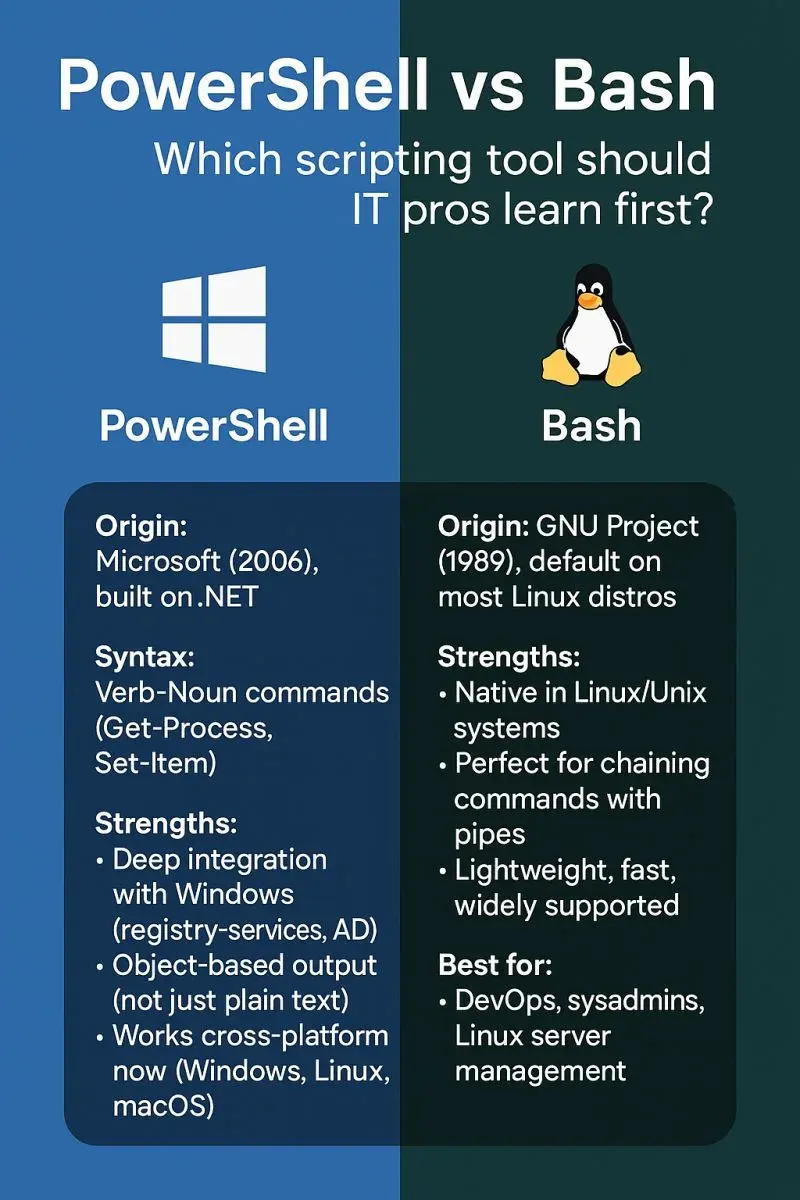
PowerShell owns Windows and, increasingly, the cloud. Its defining trait is that pipelines carry objects, not text. When you pipe one command into another, you hand over structured data with named properties, so filtering services by their real status or sorting processes by actual memory usage needs no fragile text parsing. Since version 7 it also runs on Linux and macOS, which makes it a serious choice even in mixed estates.
Bash is the native tongue of Linux and macOS, and it is everywhere a server lives. It moves text through pipes and leans on a toolbox of sharp little utilities like grep, awk, and sed. It feels cruder than PowerShell’s object model, and in a sense it is, but its ubiquity means you will reach for it constantly regardless of where your shop’s loyalties lie.
You do not have to master both to expert depth. The realistic, valuable goal is literacy in both: PowerShell as your Windows and cloud automation engine, Bash for Unix hosts and quick text wrangling. The underlying ideas, variables, conditionals, loops, functions, and error handling, are identical across the two. Only the punctuation changes.
What separates a script from a tool
Anyone can write a script that works once on their own machine. That is a draft. Turning it into something the team can trust takes a handful of habits, none of them glamorous.
Make it idempotent, so running it twice does no harm. Scripts get re-run constantly after a network blip or a nervous double-click, and the safe ones simply re-establish the desired state instead of erroring or doubling up. Give it a dry-run, a way to show what it would do before it does it. PowerShell builds this in with -WhatIf; in Bash you add a flag yourself. The default path must always be the harmless one.
Log everything. When a scheduled script fails at 3am, the log is your only witness, so write timestamped lines for the start, the key decisions, every change, and the final result. Validate input before it can do damage, and handle errors loudly rather than swallowing them. Then run it through a linter, ShellCheck for Bash or PSScriptAnalyzer for PowerShell, which catches in seconds the subtle mistakes that would otherwise become a baffling ticket.
Start small, start today
You do not need a grand automation strategy. You need one annoying, repetitive task you will do again this week. Write the script for that. Add parameters so it is not hardcoded, a dry-run so it is safe, and a log so you can see what happened. Run it, watch it work, and put it in version control.
Then do it again next week. That is the whole method. A toolkit is just a recipe box you kept adding to, one closed ticket at a time, until one day you realize the boring third of your week quietly disappeared and you got to spend it on the work that actually needed a human.
Key takeaways 5
- Easy, repetitive tasks quietly consume a large part of the week.
- Scripting is a core support skill, not just a developer one.
- PowerShell manages Windows; Bash manages Linux and macOS.
- Tools add parameters, error handling, logging and safe defaults.
- Start with the ticket you've closed a hundred times.
Watch & learn

Frequently asked questions
Should IT support learn PowerShell or Bash first?
Learn the shell for the systems you support most, usually PowerShell in Windows-heavy environments, then add Bash, since most organizations run both.
What tasks can IT support automate with scripts?
User account creation, password resets, disk and service checks, log collection, software installs, printer fixes and generating inventory reports.
How do I make a script safe to run?
Add parameters and input validation, a dry-run or -WhatIf mode, error handling, logging and clear output, and test it on non-production systems first.
Go deeper with the free masterclass
Workshop, PDF handbook and curated resources for “Scripting for IT Support (PowerShell & Bash)”.
Related articles
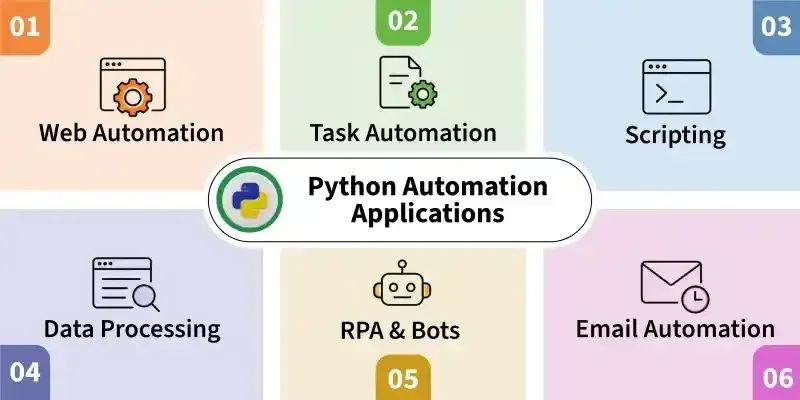
Python for Automation
You do not need to be a programmer to make your computer do your busywork. You need one small script, and the willingness to write the next one.

AI-Assisted IT Support & Automation
AI will not replace your service desk. It will quietly hand the keys to whoever forgets to keep a human in the room.
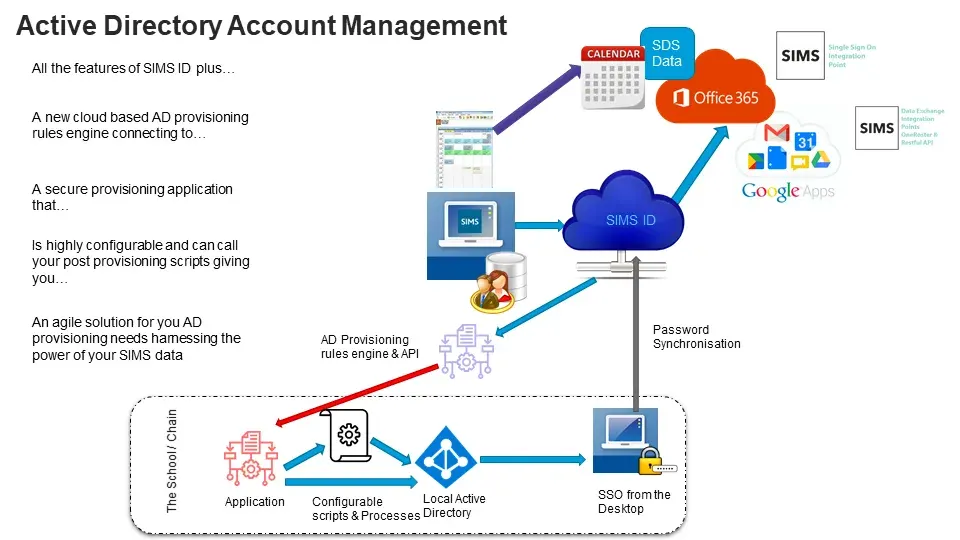
Active Directory & User Management
Active Directory quietly decides who you are and what you can touch every time you sign in at work - here is why that invisible referee is worth understanding.
Comments
No comments yet. Start the conversation.