Active Directory & User Management
Active Directory quietly decides who you are and what you can touch every time you sign in at work - here is why that invisible referee is worth understanding.
TL;DR
Active Directory is the directory service behind most corporate Windows networks. It stores users, computers and groups, organizes them into containers, and decides at sign-in who you are and what you may access, which is why understanding it explains how work computers behave.
On this page
Almost everyone who has worked in an office has used Active Directory without ever seeing it. You type your username and password into a company laptop, the screen thinks for a second, and your desktop appears with your files, your printers, and your permissions already in place. Behind that ordinary moment sits a piece of software that has run the plumbing of corporate Windows networks for more than two decades. It is worth knowing what it does, not because you will ever click on it as a regular user, but because understanding it explains a surprising amount about how work computers behave.
The directory as a phone book with rules
The simplest way to picture Active Directory is as a phone book for an organization that also enforces the rules. A phone book lists people and how to reach them. Active Directory lists people too, but it also lists computers, printers, shared folders, and the groups that tie them together, and crucially it records what each of those is allowed to do. When a file server is asked to open a document, it does not decide on its own whether you are allowed. It turns to the directory and asks, and the directory answers.
That single arrangement is what makes a network manageable. Instead of every server and every laptop keeping its own private list of who may do what, there is one trusted source that everything else consults. Add a person once, and they exist everywhere. Disable them once, and they vanish from everywhere. The convenience you feel as an employee is the same property that lets a small team administer thousands of machines.
Why everything is organized into containers
If you could peer inside the directory, you would not find a flat list. You would find a tree of containers, and the shape of that tree is deliberate. Organizations sort their accounts and computers into folders, often mirroring departments and locations, because the position of an object decides two practical things: which automatic settings reach it, and which administrators are allowed to manage it.
This is the quiet reason your work laptop behaves the way it does. The screen that locks itself after a few idle minutes, the wallpaper you cannot change, the printer that appeared without you installing it - none of that was configured on your machine by hand. It was defined once, centrally, and aimed at the container your computer sits in. Move the computer to a different part of the tree and a different set of rules would take over. The settings are not nagging you; they are policy, applied at scale, and the structure is what makes the aiming possible.
The idea that quietly protects everyone
The most important concept in this world is also the least glamorous: least privilege. It means every account gets exactly the access it needs to do its job and not a scrap more. It sounds like bureaucracy, but it is really damage control.
Think about what happens when an account is tricked by a convincing phishing email or has its password guessed. Whatever that account could reach, the attacker can now reach. If the account belonged to someone who only needed access to one team’s shared folder, the blast radius is one folder. If the account happened to be a powerful administrator, the blast radius can be the whole company. Least privilege does not stop the initial mistake; it shrinks the consequences. That is why careful organizations keep their most powerful accounts to a tiny, watched handful, and why a good administrator browses the web and reads email with an ordinary account, switching to a privileged one only for the minutes they truly need it.
The same instinct explains the advice to disable a departing employee’s account rather than delete it outright. Disabling cuts off access immediately while preserving the trail of what that person owned and belonged to, which matters if anyone later needs to review or recover their work. Deletion is the irreversible step, saved for after a sensible waiting period.
Where the cloud fits in
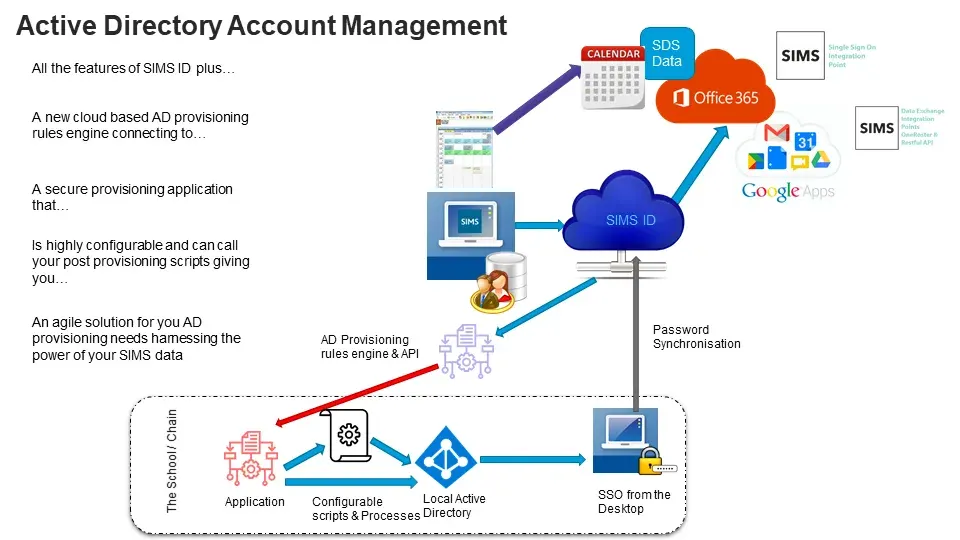
For most of its life, Active Directory assumed a world of company laptops sitting on a company network. That assumption no longer holds. Work email, shared documents, and chat increasingly live in cloud services reached over the open internet, and those services need their own way to check who you are.
Microsoft’s answer is a separate but related cloud identity service called Azure Active Directory, which secures sign-ins to cloud applications using the kind of internet-friendly protocols that web services speak. Many organizations now run both at once and connect them, synchronizing accounts so that a single corporate identity works for the file server down the hall and the cloud app on your phone. The practical upshot, if you ever find yourself troubleshooting, is that the original copy of an account usually still lives in the on-premises directory, and changes flow upward to the cloud on a schedule. When a cloud account looks wrong, the fix often belongs back on the ground, not in the cloud portal.
The takeaway
Active Directory rewards a little curiosity. Once you see it as the trusted referee that answers who you are and what you can touch, the everyday quirks of corporate computing stop being arbitrary. The locked screen, the centrally chosen settings, the careful gatekeeping around powerful accounts - all of it follows from a single goal: making a large network both manageable and defensible at the same time. You do not need to administer it to benefit from understanding it, and the habits it encourages, especially keeping access minimal, are good ones to carry anywhere.
Key takeaways 5
- Active Directory is a central directory of users, computers and groups, with rules attached.
- Organizational units and groups let admins manage thousands of accounts consistently.
- Group Policy pushes settings and security rules to every machine automatically.
- Least privilege, giving each account only the access it needs, protects everyone.
- Microsoft Entra ID (formerly Azure AD) extends identity management to the cloud.
Watch & learn

Frequently asked questions
What is Active Directory used for?
Active Directory stores and manages identities (users, computers and groups) in a Windows network. It authenticates sign-ins and controls access to files, printers, applications and settings.
What is the difference between Active Directory and Entra ID?
Active Directory runs on domain controllers inside an organization's network. Microsoft Entra ID, formerly Azure AD, is Microsoft's cloud identity service for Microsoft 365 and web apps. Many companies connect the two in a hybrid setup.
What is an organizational unit (OU)?
An OU is a container inside Active Directory used to group users or computers, for example by department, so administrators can delegate control and apply Group Policy to them together.
Go deeper with the free masterclass
Workshop, PDF handbook and curated resources for “Active Directory & User Management”.
Related articles
Scripting for IT Support (PowerShell & Bash)
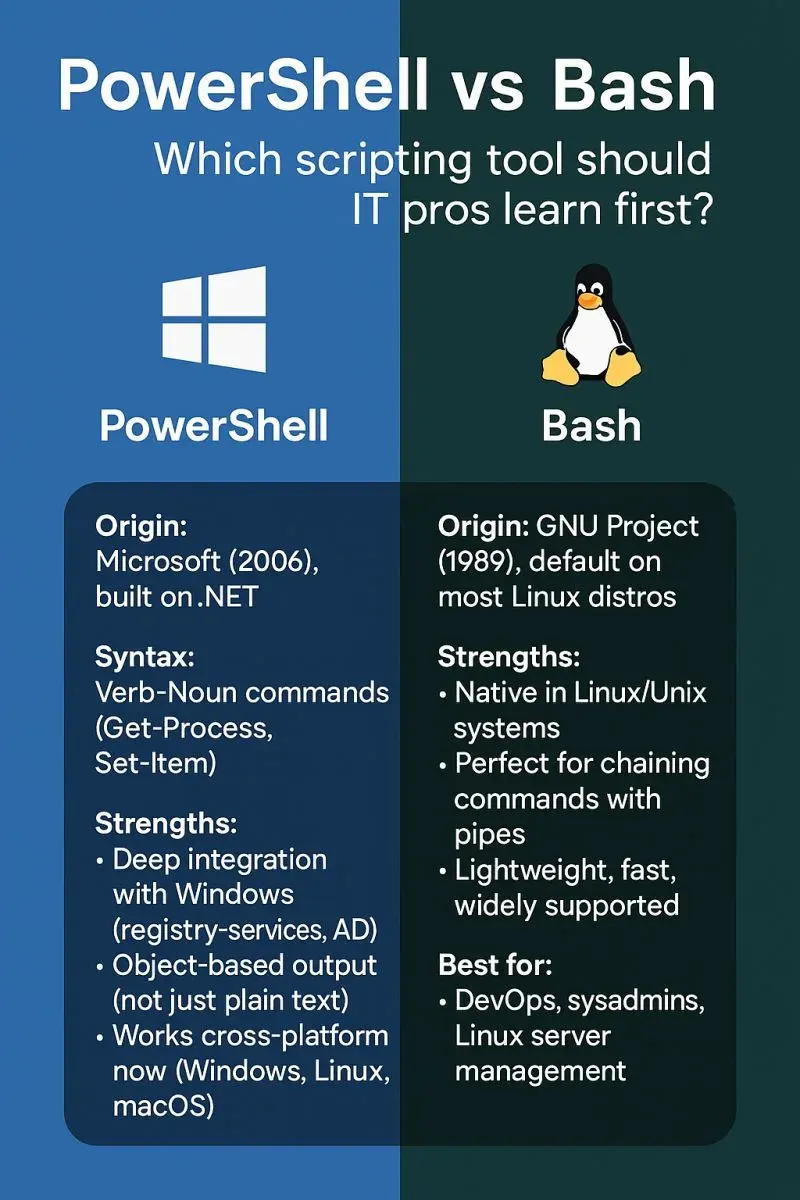
Every support engineer hits a ceiling doing things by hand. Scripting is how you break through it, and you only need two shells to start.

Supporting Hybrid & Remote Workforces
The office help desk assumed it could walk over and fix things. When the users scattered, the service desk had to be rebuilt around a single uncomfortable truth - you can never touch the device.
ITSM & the Service Desk (ITIL)
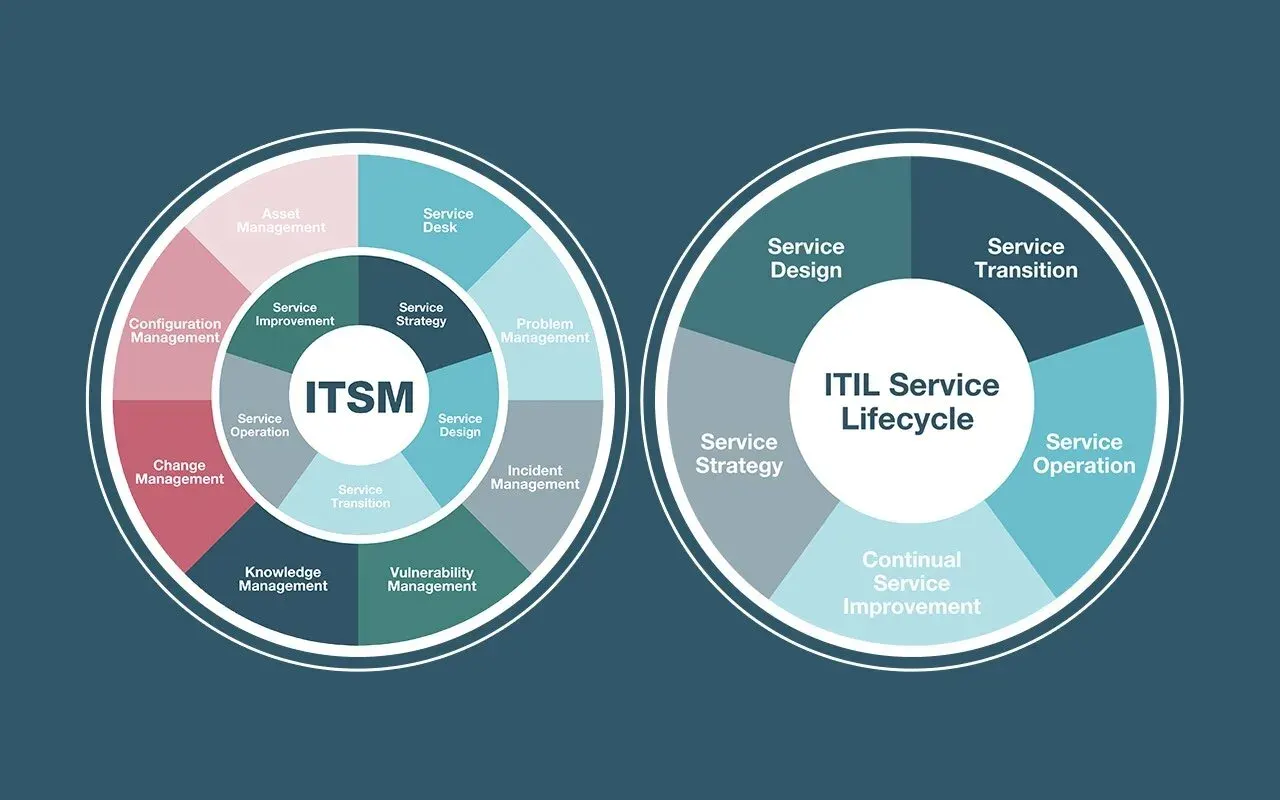
The service desk is the most underrated team in IT. Run it as a service, not a switchboard, and it quietly makes the whole organisation better.
Comments
No comments yet. Start the conversation.