Operating Systems Troubleshooting (Windows, macOS, Linux)
Three operating systems, one set of instincts. The technician who sees the pattern fixes any machine; the one who memorized commands is stuck the moment the logo changes.
TL;DR
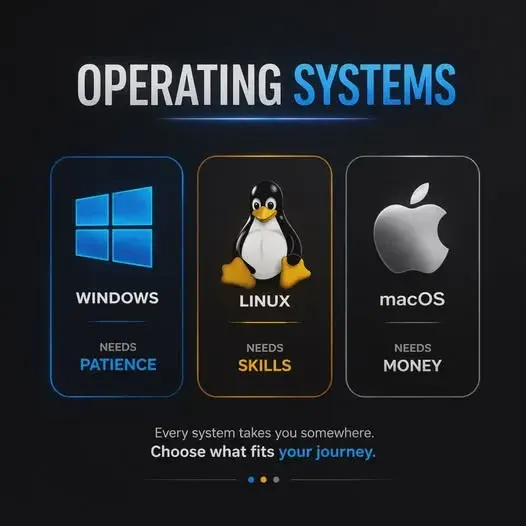
Technicians who memorize commands get stuck when the operating system changes; those who understand the model fix any machine. Windows, macOS and Linux share the same rooms behind different doors: processes, services, logs, storage, networking and permissions. Learn the pattern and the method travels.
On this page
The first time a help-desk technician is handed a Mac after months of Windows, something quietly humiliating happens. The instinct to press Ctrl+Shift+Esc produces nothing. There is no Event Viewer in the Start menu, because there is no Start menu. The command they would have typed without thinking does not exist. And in that pause - the small panic of not knowing the keystroke - they discover the difference between knowing commands and understanding operating systems.
It is a difference worth thinking about early, because it decides how far a support career can travel.
The trap of memorized commands
It is tempting to treat troubleshooting as a phrasebook. Stuck printer, type this. Slow PC, click that. No internet, run the other thing. For a while it works, and it feels like competence. The problem is that a phrasebook only covers the phrases someone wrote down, and real users have an inexhaustible talent for producing situations nobody wrote down. The technician who learned support as a list of commands is fine until the screen looks slightly different - a new Windows version, an unfamiliar error, or, most jarring of all, a different operating system entirely. Then the list runs out, and there is nothing underneath it.
What should be underneath it is a mental model of how a computer actually works. Not a deep one - a help-desk technician does not need kernel internals - but enough to reason instead of recite.
The model that travels
Here is the whole secret, and it is smaller than people expect. Every operating system, whether it shows a Windows logo, an Apple, or a penguin, does the same things in the same order. It runs firmware to wake the hardware. It loads a small boot loader whose only job is to start the kernel. The kernel sets up the CPU, the memory, and the drivers. Then it launches background services and, finally, the desktop the user sees.
Once that sequence lives in your head, a “it won’t start” ticket stops being a mystery and becomes a question of geography. Where did it stop? A blank screen with no logo is a hardware or firmware problem, before any operating system code has run, and it looks the same on all three platforms. A loader that appears but cannot bring up the system points at the kernel or a driver. A login screen that never reaches the desktop is a user-session problem - a bad startup item, a broken profile - and again, the diagnosis is identical no matter whose logo you saw a moment ago. You are not memorizing three sets of failures. You are reading one map.
Same room, three doors
The tools follow the same logic, which is the part that surprises new technicians most. They assume macOS and Linux are foreign countries. They are more like dialects.
When something is slow, you want to see what the machine is doing right now. On Windows you open Task Manager; on a Mac you open Activity Monitor; on Linux you type top. Three names, one question: which resource is the bottleneck, CPU, memory, or disk? When something crashed and you want to know why, you read the logs - Event Viewer on Windows, Console on a Mac, journalctl on Linux. Three doors into the same room. When the disk’s filesystem is damaged, Windows runs chkdsk and the others run fsck, and they repair the same kind of harm. When an app freezes, you end the one stuck process rather than rebooting the whole machine, whether you click End task, choose Force Quit, or type kill.
The technician who learned the concept - look at live load, read the logs, check the services, repair the disk - needs only to look up the exact spelling per platform. The technician who learned the commands has to start over on every new system. Same effort to learn; wildly different reach.
What does not change at all
There is a layer beneath even the model, and it is the one that matters most. The method does not change across operating systems, because the method is about thinking, not typing. Find out what changed - an update overnight, a new app, a disk that crept past full - because that single question solves more OS tickets than any command. Look before you leap: run a read-only check, see the load and the free space, before you alter anything. Change one thing at a time, so that when the symptom clears you actually know why. Verify with the user, not just with yourself. And when a recent change is the obvious culprit, remember that rolling it back - uninstalling the update, reverting the driver, booting the older kernel - is usually faster and safer than hunting the symptom.
None of that is Windows knowledge or Mac knowledge or Linux knowledge. It is troubleshooting, and it is portable to a machine that has not been invented yet.
The technician who travels well
The industry keeps shifting under everyone’s feet. A new Windows is always around the corner; Macs changed their own processor architecture; Linux quietly runs more of the world every year. A technician whose skill is a list of commands feels every one of those shifts as a threat, another phrasebook to rebuild. A technician who understands how operating systems boot, where they break, and how the tools mirror each other feels them as nothing much at all - a few new spellings for ideas they already own.
So learn the commands; you will need them, and they come quickly. But learn them as examples of something larger, not as the thing itself. The keystroke is local. The understanding is what lets you sit down at any machine, on any operating system, and know - before you touch a key - roughly where the trouble lives.
Key takeaways 5
- Memorized commands break the moment the logo changes.
- Every OS has processes, services, logs, storage, network and permissions.
- Learn where each OS keeps them: Task Manager, Activity Monitor, top.
- The troubleshooting method doesn't change: reproduce, isolate, test, verify.
- Understanding the model makes you effective on any platform.
Watch & learn

Frequently asked questions
How do I see running processes on Windows, macOS and Linux?
Use Task Manager (Ctrl+Shift+Esc) on Windows, Activity Monitor on macOS and commands like top, htop or ps on Linux.
Where are system logs on each operating system?
Windows uses Event Viewer, macOS uses the Console app and the log command, and Linux uses journalctl on systemd systems and files under /var/log.
What is a universal troubleshooting method?
Identify and reproduce the problem, gather information, form a hypothesis, test one change at a time, verify the fix and document what you did.
Go deeper with the free masterclass
Workshop, PDF handbook and curated resources for “Operating Systems Troubleshooting (Windows, macOS, Linux)”.
Related articles
Modern IT & Desktop Support Essentials
Anyone can learn ipconfig. The technicians who get promoted are the ones who learned something harder first.
Hardware Diagnostics & Repair
Anyone can swap a part. The skill that separates a real technician from a parts-changer is a method that lets the broken machine tell you what is wrong.
Networking for Support Technicians
The "I can't connect" ticket is the most common one you will ever take, and the easiest to fix badly. Here is the calm, layered method that turns guesswork into a five-minute diagnosis.
Comments
No comments yet. Start the conversation.