Comprehensive Guide to Setting Up Ubuntu on Your Local Machine | 02x00.06-02
TL;DR
A practical guide for developers to run Ubuntu on Windows or macOS, mainly through virtual machines: why VMs give isolated, reproducible environments, the options on each platform including WSL, and how to use Vagrant to automate VM setup, then check your system with uname.
On this page
Setting Up Ubuntu on Your Local Machine
A Comprehensive Guide for Developers
Introduction
Setting up a robust coding environment on your local machine is essential for efficient software development. This guide explores various methods to run Ubuntu, a popular Linux distribution, on both Windows and macOS platforms.
What is Ubuntu?
Ubuntu is a widely-used Linux distribution known for its user-friendly interface, stability, and strong community support. It’s favored by developers for its compatibility with numerous programming tools and environments.
Why Use Virtual Machines?
Virtual machines (VMs) are software-based emulations of physical computers. They allow you to run Ubuntu within another operating system (Windows or macOS), providing isolated environments for development.
Benefits of using VMs include:
- Isolation: Prevent conflicts between different software installations.
- Replicability: Easily duplicate and share development environments.
- Flexibility: Experiment with different setups without risking system stability.
Options for Running Ubuntu
Windows
Windows users have several options to run Ubuntu:
- WSL (Windows Subsystem for Linux): Native Linux kernel that integrates seamlessly with Windows.
- VirtualBox: Free, open-source virtualization software for running Ubuntu VMs.
- VMware Workstation: Paid virtualization software offering advanced features for Ubuntu VMs.
- Vagrant: Simplifies VM management and configuration.
- Docker: Containerizes applications, including Ubuntu setups for specific tasks.
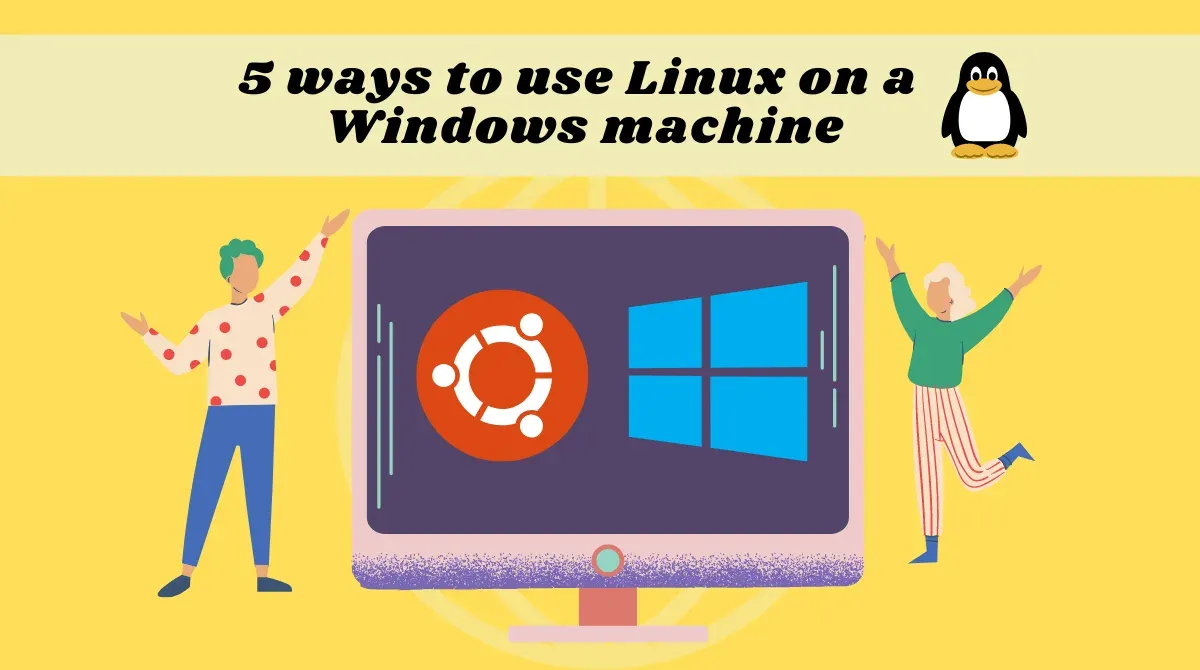
Various options for running Ubuntu on Windows.
macOS
On macOS, you have multiple options depending on your hardware:
-
Mac with Apple Silicon (M1) chip: Docker is recommended due to ARM architecture compatibility.
-
Mac with Intel chip:
-
VirtualBox: Free, open-source virtualization software.
-
VMware Fusion: Paid virtualization software with enhanced features.
-
Vagrant: Simplifies VM management and configuration.
-
Docker: Containerizes applications, suitable for specific tasks.
Using Virtual Machines with Vagrant
Vagrant simplifies the creation and management of VMs with easy-to-use configuration files (Vagrantfiles). It’s ideal for creating reproducible development environments across teams.
Exploring Ubuntu with ‘uname’
The uname command in Ubuntu displays basic system information and kernel version. It’s useful for checking system details directly from the terminal.
Conclusion
Setting up Ubuntu on your local machine via virtual machines enhances your development workflow by providing flexible, reproducible environments. Choose the option that best suits your hardware and development requirements to optimize your coding experience.
Further Resources
Key takeaways 5
- Ubuntu is a popular, stable Linux distribution for developers.
- Virtual machines give isolated, reproducible development environments.
- On Windows, WSL or a VM are the easiest options.
- On macOS, use a virtualization tool to run Ubuntu.
- Vagrant automates creating and configuring VMs from a single file.
Watch & learn

Frequently asked questions
How can I run Ubuntu on Windows?
The simplest options are Windows Subsystem for Linux (WSL), which runs Ubuntu alongside Windows, or a virtual machine using software such as VirtualBox or Hyper-V.
What is Vagrant used for?
Vagrant creates and configures virtual machines from a simple configuration file (a Vagrantfile), so every developer can reproduce the same environment with one command.
What does the uname command show?
uname prints system information; uname -a shows the kernel name, version, machine architecture and other details of the running system.
Learn it hands-on at AL Academy
Free practical programs in software, automation and IT, with labs and certificates.
Related articles
Advanced Ubuntu Terminal Commands | 02x01.06-01
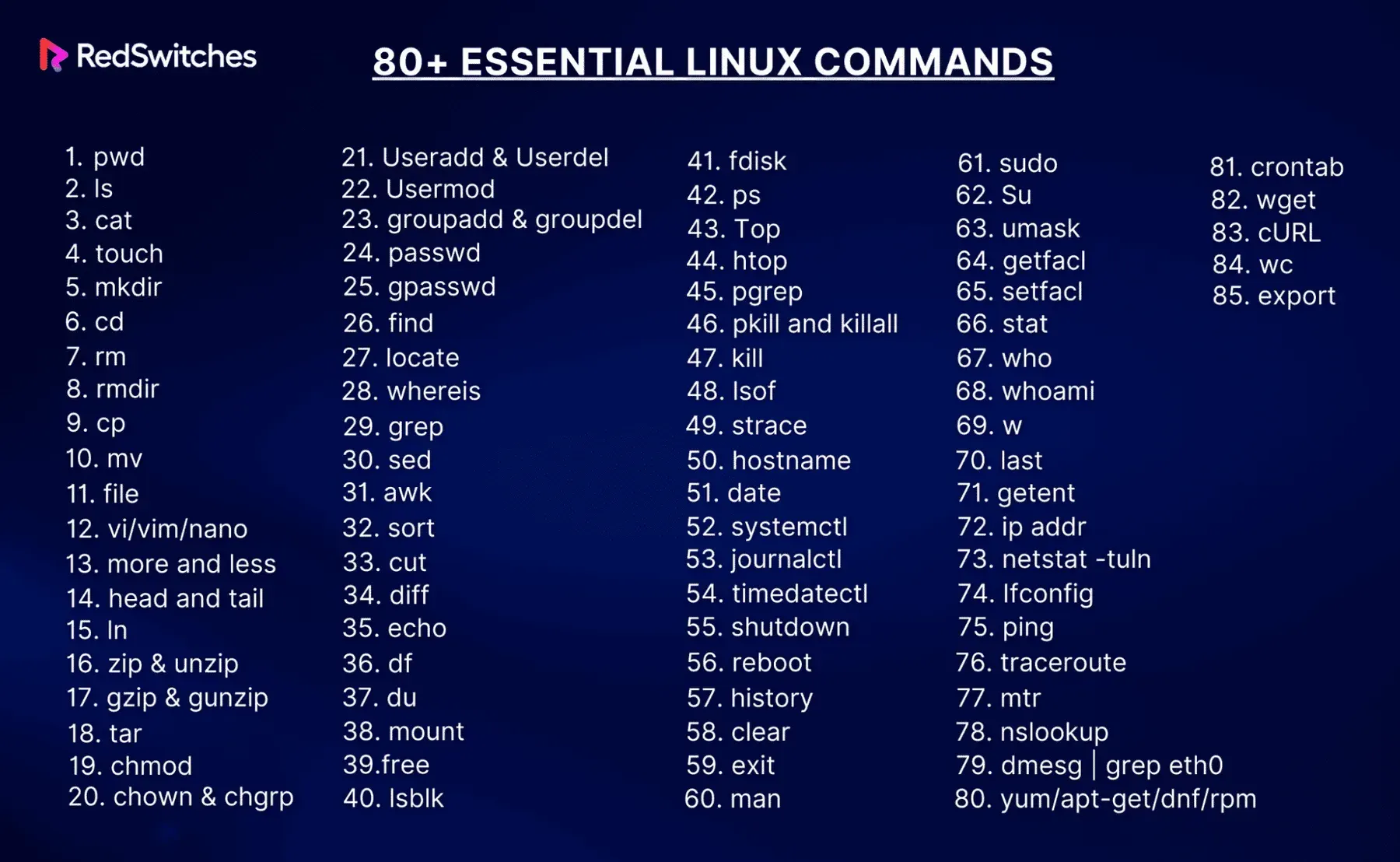
Ten advanced Ubuntu terminal commands every power user should know, from grep, awk and sed to rsync, tmux, cron, ssh, find and docker.

A Comprehensive Guide to Raspberry Pi Crypto Mining: Turn Your Pi into a Money Maker
Are you ready to delve into the world of cryptocurrency mining with your Raspberry Pi?
Full PhotoPrism Setup Guide on Raspberry Pi (or Linux Server)
Step-by-step guide to self-hosting PhotoPrism on a Raspberry Pi or Linux server with Docker, an external drive and auto-start on boot.
Comments
No comments yet. Start the conversation.