Version Control with Git
Git can feel cryptic at first, but underneath the strange commands sits a simple, elegant idea. Here is the one mental model that makes everything click.
TL;DR
Git is easier than it looks once you hold one picture: changes move from the working directory to the staging area to the repository; every commit is a full snapshot linked to its parent; a branch is just a movable label; and remotes plus pull requests turn local history into teamwork.
On this page
If you have ever watched an experienced developer fly through Git commands, branching, stashing, rebasing, cherry-picking, you might assume the tool is impossibly complicated. It is not. Git has a reputation for being confusing, but most of that confusion comes from learning the commands before understanding what they actually do. Once the underlying picture is clear, the commands stop feeling like incantations and start feeling obvious. This article is about that picture.
The problem Git solves
Before version control, people managed changing files the only way they knew how: by saving copies. You have almost certainly done it yourself, a folder cluttered with report-v2, report-final, and report-final-actually-this-one. It works, barely, for a single document. It collapses the moment a project grows to many files edited by several people.
Version control replaces that mess with something disciplined. It records the history of your project so that at any moment you can ask: what changed, who changed it, when, and why. Those four answers are the whole game. They give you the ability to go back to any earlier state, to understand how the project reached its current form, and to combine the work of many people without anyone clobbering anyone else.
Git, created by Linus Torvalds in 2005 to manage the Linux kernel, answers those questions better than the tools that came before it. Its key trick is being distributed: every developer holds a complete copy of the entire history on their own machine. You can commit, branch, and browse history with no network at all. That design is a big part of why Git became the default choice for software teams everywhere.
Three areas, one rhythm
Here is the mental model that unlocks Git. Your work lives in three areas, and almost every command simply moves changes between them.
The first area is the working directory: the files you see and edit. The second is the staging area, a kind of waiting room where you gather exactly the changes you want to save next. The third is the repository, the hidden .git folder that stores your permanent history.
The daily rhythm is a loop through these three. You edit files in the working directory. You stage the changes you care about. You commit them, creating a permanent snapshot. Then you do it again. In commands:
git status                       # what is going on?
git add .                        # stage the changes I want
git commit -m "Describe change" # save a snapshot- Area
- Command that moves changes
The staging area is the part beginners find strangest, and also the part that makes Git powerful. It means you do not have to commit everything you have touched. If you fixed a bug and also tidied some unrelated formatting, you can stage and commit just the bug fix, keeping each snapshot focused. A clean history like that is a genuine gift to whoever reads it later, very often your future self.
It helps to think of each commit not as a list of edits but as a full photograph of your project at a moment in time, stamped with an author, a date, and a message explaining the intent. Because each commit links back to the one before it, your commits form a chain, and that chain is your history.
- Commit
- Points to parent
Branches are just labels
The next idea sounds advanced but is delightfully simple. A branch is nothing more than a movable label pointing at a commit. Creating one copies no files and costs almost nothing; it just adds a new label you can build on.
That cheapness changes how you work. Instead of editing the main line of your project directly, you make a branch for each task and do your work there. Your main branch stays stable while you experiment. If the work succeeds, you merge it back in. If it fails, you delete the branch and nothing is lost.
git switch -c new-feature   # create a branch and move onto it
# ...edit, add, commit...
git switch main
git merge new-feature       # bring the work back into main
Most of the time Git merges branches automatically, even when they changed different parts of the same file. Occasionally two branches change the very same lines, and Git stops to ask you which version wins. That is a merge conflict, and despite its scary reputation it is routine: Git marks the disputed region in the file, you pick the final text, and you commit. Nothing is broken; Git simply will not guess on your behalf.
- Commit on main
- Commit on the feature branch
Sharing through remotes and pull requests
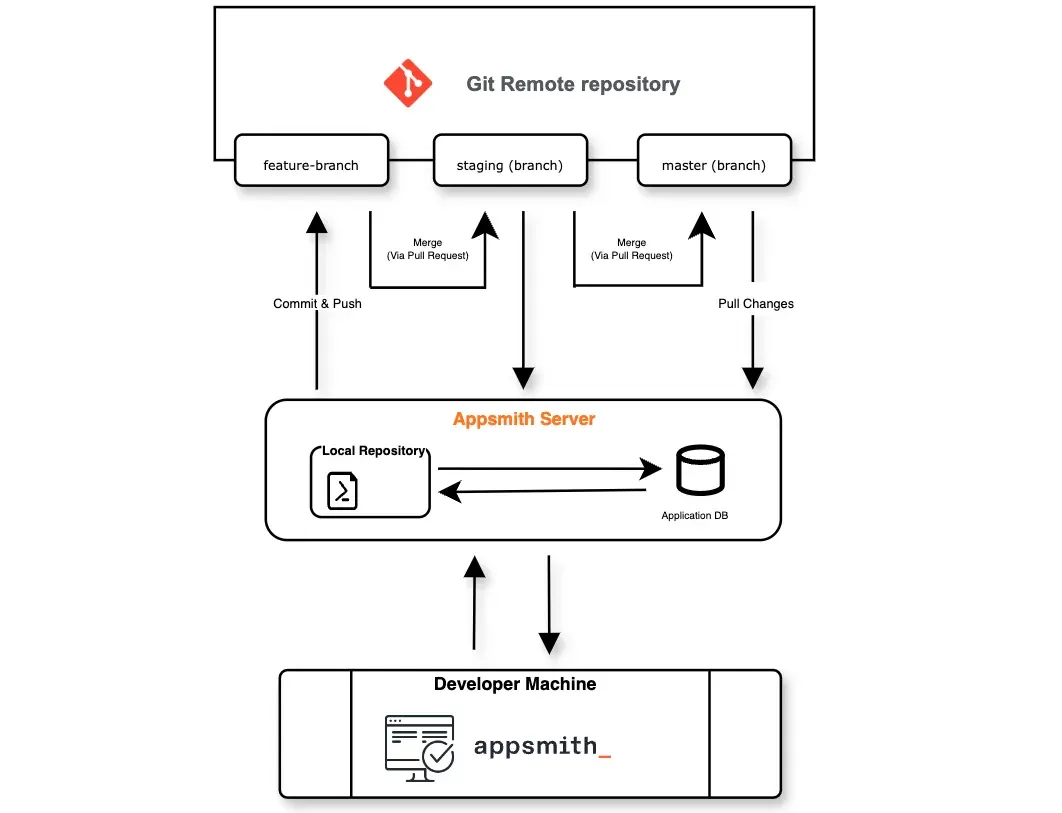
Everything so far happens on your own machine. To collaborate or simply back up your work, you connect your repository to a remote, another full copy living on a server such as GitHub. You send your commits up with push and bring others’ commits down with pull.
git push -u origin main     # send your work to the remote
git pull                    # fetch and merge others' work
On a team, you usually do not push straight into the main branch. Instead you push a feature branch and open a pull request, a proposal that says, “here are my commits; please review and merge them.” A pull request opens a space for teammates to read the changes line by line, comment, request fixes, and finally approve. This review-before-merge loop keeps the main branch healthy and spreads knowledge across the team. It is the backbone of how modern software gets built.
The takeaway
Git is not really many disjointed tricks. It is one small set of ideas: three areas your changes move through, snapshots linked into a history, and cheap branches you merge and share. Hold that picture in your head and the commands follow naturally. When something goes wrong, stay calm and run git status; it almost always tells you where you are and what to do next. Learn the model first, and Git stops being a source of dread and becomes exactly what it was designed to be, a dependable safety net under everything you build.
Key takeaways 5
- Learn the model before the commands: three areas, one rhythm (edit → add → commit).
- A commit is a full snapshot with an author, a date and a message, linked to its parent.
- Branches are cheap labels, so use one per task and merge when it works.
- Merge conflicts are routine: Git refuses to guess, and you choose the final text.
- Push feature branches and open pull requests; review before merge keeps main healthy.
Watch & learn


Frequently asked questions
What is the difference between Git and GitHub?
Git is the version-control tool that runs on your machine and records your project's history. GitHub is a hosting service for Git repositories that adds collaboration features such as pull requests, code review and issue tracking.
What does the staging area do in Git?
The staging area holds exactly the changes you want in your next commit. It lets you commit a focused change, such as a bug fix, without including unrelated edits you also made.
Is a merge conflict dangerous?
No. A merge conflict means two branches changed the same lines and Git will not guess which version wins. Git marks the region in the file, you pick the final text, then you commit. Nothing is lost.
Go deeper with the free masterclass
Workshop, PDF handbook and curated resources for “Version Control with Git”.
Related articles
Introduction to Source Code Management with Git and GitHub | 02x00.04-01
Source Code Management (SCM) is the practice of tracking and managing changes to code throughout its lifecycle.
Connecting Git with Personal Access Tokens | 02x00.04-02
Source Code Management (SCM) is the practice of tracking and managing changes to code throughout its lifecycle.
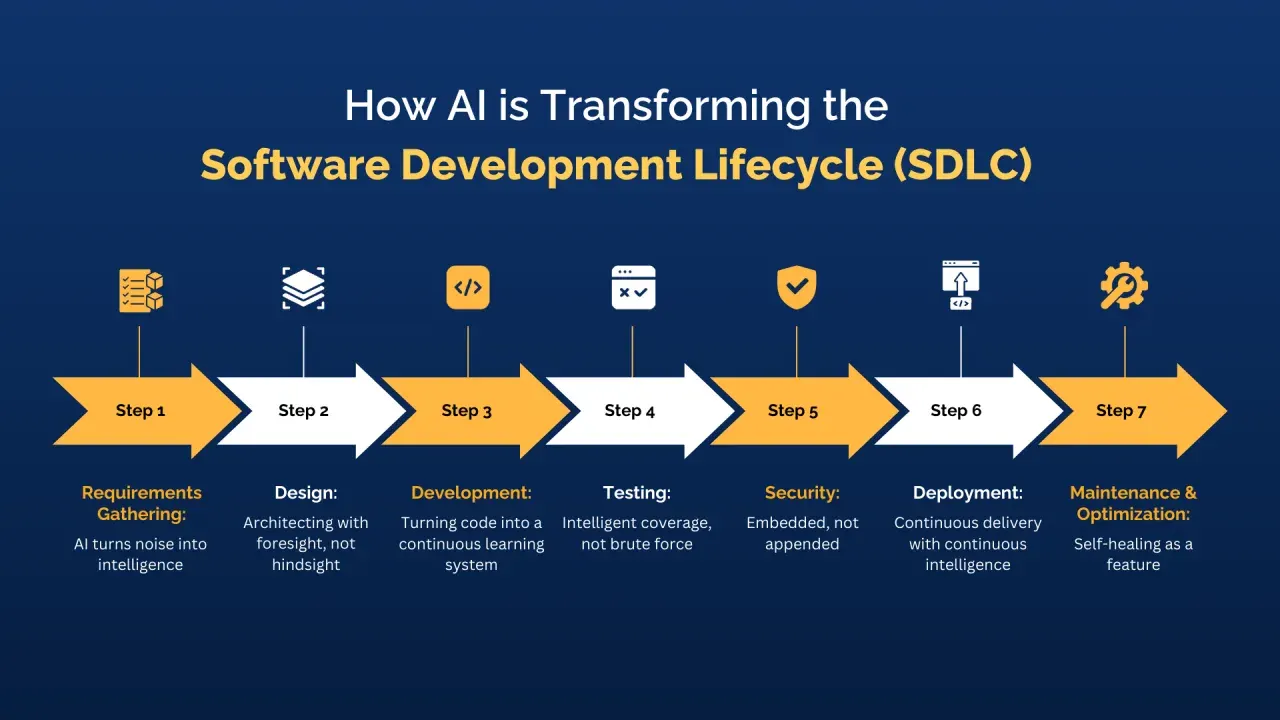
AI-Assisted Software Development
AI can draft code faster than you can read it. That is exactly the problem - and the skill that now separates good engineers from dangerous ones.
Comments
No comments yet. Start the conversation.